Witch’s Garden Junk Journal: Selecting and Using Digital Assets Effectively
Creating an authentic mystical aesthetic requires more than just placing a few leaf graphics on a page; it demands a cohesive atmosphere that feels both ancient and intentional. The Witch’s Garden Junk Journal digital paper pack serves this specific purpose by providing high-resolution backgrounds rooted in occult botanical elements rather than generic fantasy clip art. For creators, scrapbookers, and spiritual practitioners, understanding the technical and artistic nuances of these assets is essential. Many enthusiasts purchase digital ephemera only to find the final printed result lacks the depth seen on screen, or they struggle to integrate the designs into mixed-media projects because they misunderstood the file specifications. By approaching this resource with a practical mindset, you can avoid common pitfalls and fully leverage the moody, earthy energy these designs offer.
Understanding Resolution and Print Fidelity
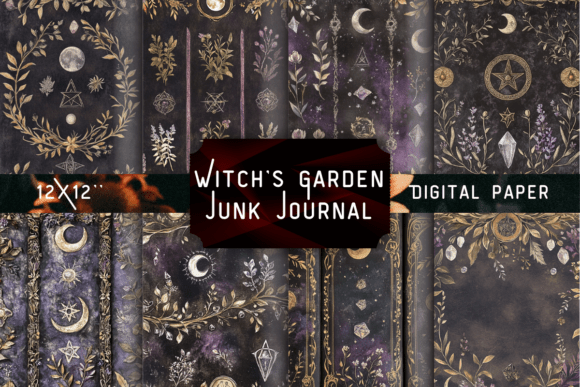
The most frequent error when working with themed digital papers like the Witch’s Garden collection is assuming all "high resolution" files are created equal for physical printing. This pack delivers 12 designs at 3600 x 3600 pixels (12″ x 12″) at 300 DPI. This specification is critical because it represents the minimum threshold for crisp, professional-grade printing. A common mistake occurs when users attempt to stretch these files to fit larger formats, such as A4 or letter-sized planner inserts, without adjusting their expectations. Stretching a 12x12 inch image to fit a taller rectangle reduces the effective DPI, resulting in pixelation or blurriness that ruins the intricate details of moonlit gardens and potion plants.
To avoid this degradation, always check your canvas size before importing. If you are creating standard junk journal pages that exceed 12 inches in any direction, plan to use these backgrounds as central focal points or layered elements rather than full-bleed covers. Alternatively, utilize tiling techniques where appropriate. Conversely, if you are downsizing for smaller tags or bookmarks, the 300 DPI ensures the texture remains sharp even at reduced scales. Never rely on screen resolution as an indicator of print quality; a file may look perfect on a monitor but fail on paper if the pixel density is insufficient for the intended physical dimensions.
Navigating Color Profiles and Monitor Calibration
The Witch’s Garden palette features deep greens, forest blacks, muted purples, and antique sepia tones. These dark, saturated colors are notoriously difficult to reproduce accurately across different devices and printers. A significant misunderstanding arises when creators judge color accuracy solely by their phone or laptop screen. Most consumer screens display RGB color spaces that are brighter and more vibrant than what inkjet or laser printers can produce in CMYK. Consequently, a rich forest black might print as a muddy gray, or a muted purple could shift toward brown if not managed correctly.
Before committing to a large batch of prints, conduct a test swatch. Print a single page using your intended paper stock and printer settings. Compare the output against the digital file in natural lighting. If the shadows appear crushed or the earthy tones lack distinction, adjust your printer’s color profile or brightness settings specifically for matte or textured paper, which absorbs ink differently than glossy photo paper. Understanding that these opaque, non-transparent backgrounds are designed for mood rather than high-key brightness helps set realistic expectations. Embracing the slightly darker, vintage apothecary aesthetic often yields better results than trying to force artificial brightness onto a design meant to evoke a shadowed, enchanted grove.
File Management and Storage Considerations
Digital asset management is often overlooked until storage becomes an issue. Each file in this pack ranges from 8 MB to 18 MB. While this size guarantees premium clarity and exceptional print quality, it can quickly consume device storage or cloud quotas if not handled strategically. Beginners sometimes download the entire zip file directly to their primary working folder, leading to sluggish software performance and disorganized project directories. Others mistakenly compress these PNGs into JPEGs to save space, inadvertently introducing compression artifacts that destroy the subtle textures of mushrooms and herbal illustrations.
Maintain the original PNG format to preserve the integrity of the opaque backgrounds. Create a dedicated external drive or cloud archive for your master digital paper library, keeping only the specific files needed for current projects in your active workspace. When organizing, consider tagging or renaming files based on visual content (e.g., "Moonlit_Garden_Sepia" or "Potion_Plants_DeepGreen") rather than generic filenames. This semantic organization saves time during the creative flow state, allowing you to locate specific occult botanical elements without opening every file to verify its contents. Efficient management ensures that the premium quality you paid for remains accessible and usable over the long term.
Design Integration and Layering Strategies
A practical challenge unique to junk journaling with digital papers is balancing busy backgrounds with functional space. The Witch’s Garden designs are rich with magical herbs and detailed textures, which can sometimes compete with handwriting or stamped images. A common misstep is treating these backgrounds as mere wallpaper rather than active design elements. Placing text directly over complex areas of dense foliage or intricate mushroom clusters often renders the writing illegible and creates visual clutter.
Approach these backgrounds as foundational layers. Utilize the negative space within the design—areas of solid forest black or muted purple—to anchor your journaling blocks. If you need to write over a busier section, employ semi-transparent vellum overlays or cream-colored cardstock cutouts to create contrast while still allowing the underlying witchy aesthetic to show through. Because these files have opaque, non-transparent backgrounds, they work exceptionally well as base layers for digital collages in apps like Procreate or Canva, but they require thoughtful masking if you wish to blend them seamlessly with other textures. Understanding the difference between a standalone background and a composite element prevents frustration and elevates the sophistication of your tarot journals, herbal planners, and gothic botanical crafts.
Evaluating Suitability for Your Specific Niche
Not every witchy aesthetic aligns with every project. Before acquiring the Witch’s Garden Junk Journal pack, honestly assess whether the specific color story and motif match your brand or personal style. This collection leans heavily into dark academia, vintage apothecary, and nature-based mysticism. It is less suited for bright, pastel, or modern minimalist witchcraft themes. Creators sometimes purchase assets based on general keywords rather than specific visual alignment, leading to unused files and wasted budget.
Review the sample previews critically. Do the antique sepia tones complement your existing washi tapes and stamps? Does the scale of the botanical illustrations match the size of your typical journal spreads? If you primarily create digital content for social media, verify that the 12x12 aspect ratio works for your platform’s requirements or that you are comfortable cropping. Making an informed decision based on actual application rather than aspirational browsing ensures that this investment translates into tangible creative output. When the aesthetic alignment is correct, these high-resolution designs become powerful tools for storytelling; when mismatched, they remain dormant files. Prioritize coherence and usability to maximize the value of your digital crafting resources.